
Creating a Broadcast
This guide will walk you through creating, previewing, and sending a compliant and well-targeted broadcast.
Before You Begin
Before setting up a broadcast, ensure the following requirements are met:
- ✅ You have at least one approved WhatsApp message template available in your Convers8 account.
- 📇 Your contacts or broadcast lists are already imported and organized.
Step-by-Step: Creating a Broadcast
1. Navigate to Broadcasts
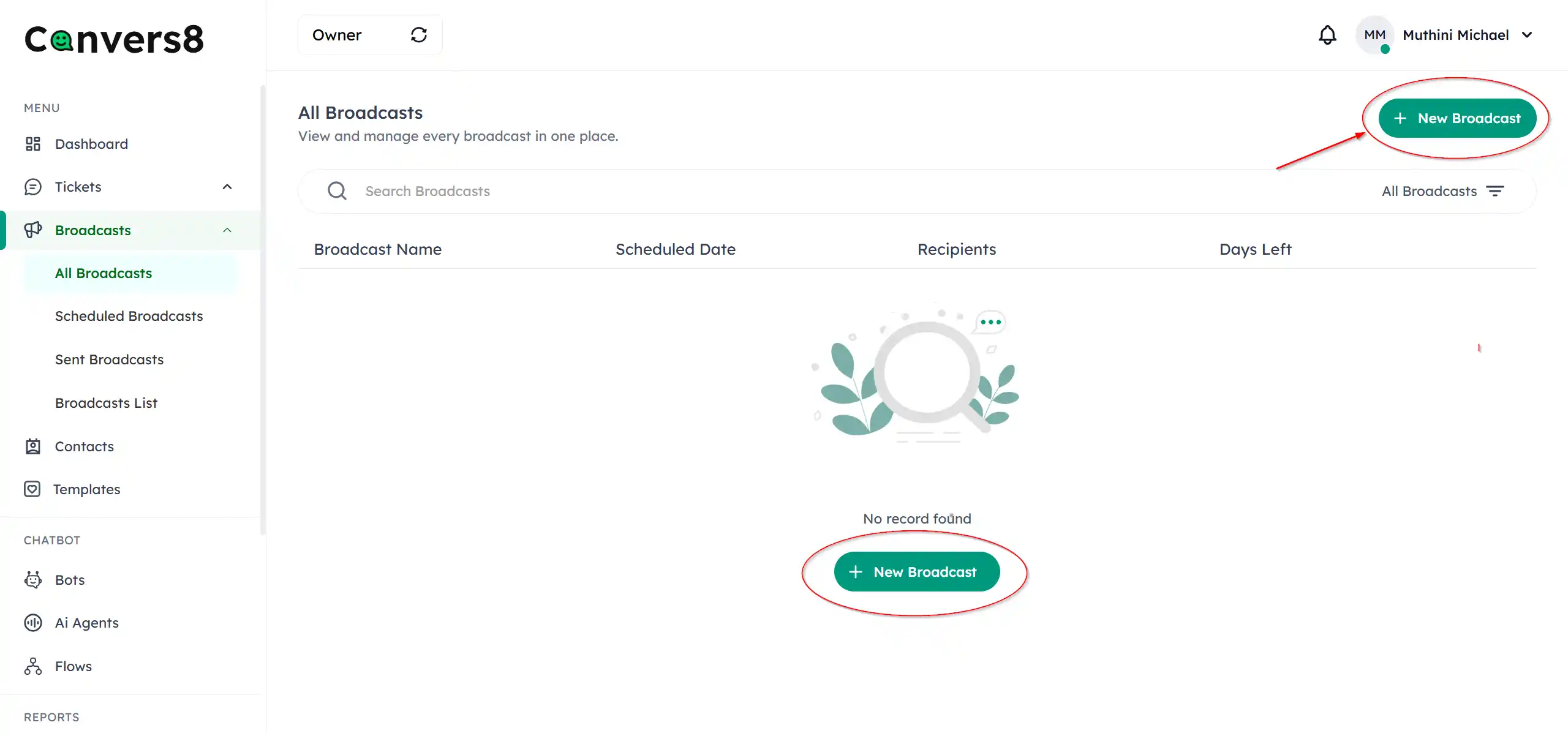
- In the Convers8 sidebar, navigate to Broadcasts to open the All Broadcasts page..
- Click New Broadcast in the top-right corner to launch the Broadcast Creation modal.
2. Name and Describe Your Broadcast
- Enter a Broadcast Name — for example, “November Promo” or “Delivery Updates.”
- Optionally, add a Description to help teammates identify its purpose.
💡 Tip: Use descriptive names to track results later in analytics (e.g., “Black Friday Campaign 2025”).
3. Select a Message Template
Choose a template from your list of approved WhatsApp message templates.
Each template may include:
- Text variables (like customer name, order number, date)
- Media attachments (images, videos, PDFs)
- Call to action or quick reply buttons
📝 Note: Templates must be pre-approved by WhatsApp before use in broadcasts.
4. Add Recipients
You can add recipients in two ways:
- Select Contacts: Pick individual contacts from your contact list.
- Choose a Broadcast List: Select an existing group of contacts (e.g., “VIP Customers”).
⚠️ Important: Contacts must have opted-in to receive messages from your business on WhatsApp.
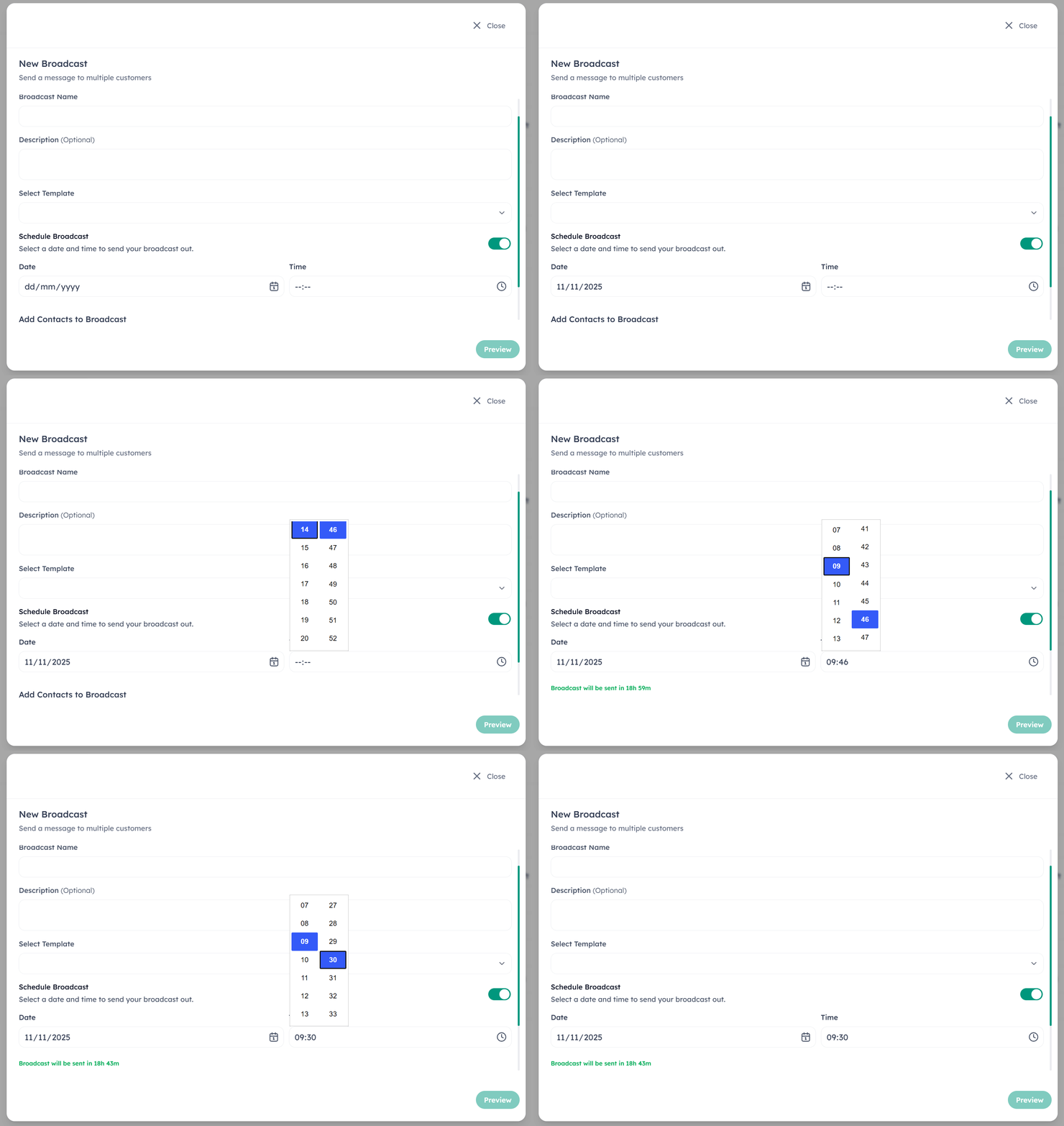
5. (Optional) Schedule Your Broadcast
If you’d like to send it later:
- Toggle Schedule Broadcast.
- Set the Date and Time (in your local timezone).
6. Preview and Personalize
Before sending:
- Review how the message will appear for recipients.
- Verify that template variables (like names or dates) are mapped correctly.
- If your template supports media, confirm that images or files appear properly.
✅ Check carefully: Once sent, a broadcast can’t be edited or recalled.
7. Send Your Broadcast
When everything looks good, click Send Broadcast.
Convers8 will:
- Queue the broadcast for immediate or scheduled delivery.
- Display the status (Scheduled and Sent broadcasts).
- Track delivery, read, and reply metrics automatically.
What Happens Next
- Once delivered, customer replies automatically open tickets inside tickets inbox.
- AI agents or human agents can then respond based on your workflow.
- You can monitor results in Dashboard Analytics.
Troubleshooting
| Issue | Possible Cause | Solution |
|---|---|---|
| Template not available | Not approved by WhatsApp | Verify approval status under Templates |
| Contacts not showing | No opt-in or not imported | Check the Contacts tab |