Adding Users
The Add User feature in Convers8 allows administrators to invite new team members to the platform. Each new user is assigned a specific role, ensuring they have the correct permissions to perform their tasks securely and efficiently.
How to Add a User
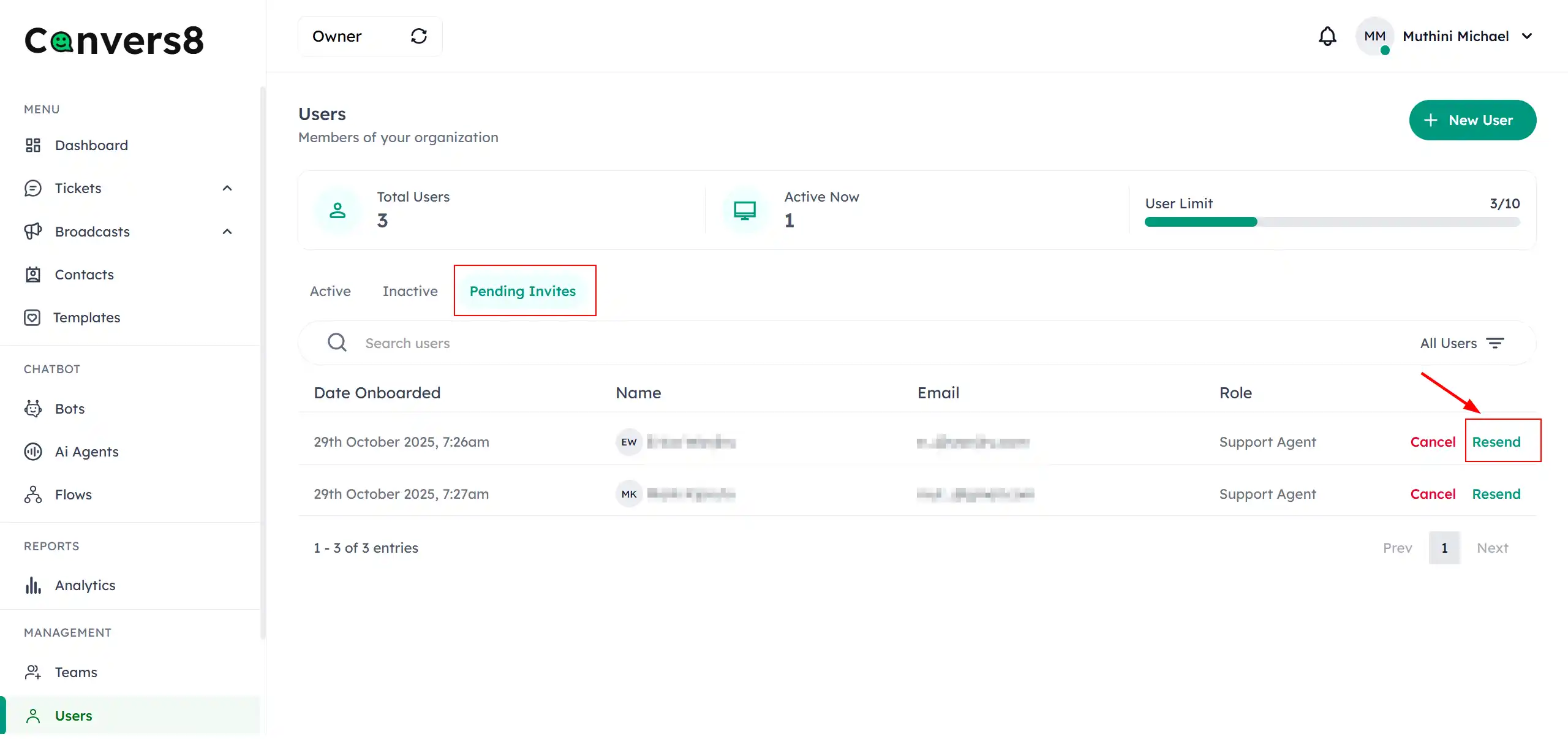
Step 1: Navigate to Users
From your main dashboard, go to the Users section.
Click Add User at the top right of the screen.
Step 2: Enter User Details
In the Add User dialog, fill out the required information:
- Full Name – The user’s display name.
- Phone Number – Used for verification and notifications.
- Email Address – The email address where the invite will be sent.
- Role – Select the appropriate role (e.g., Admin, Developer, Agent).
Step 3: Send the Invitation
Once all details are entered, click Send Invite.
Convers8 will send an email to the user containing a secure link to:
- Set their password.
- Log in and access the system.
Role Assignment Guidelines
| Role | Description | Common Use Case |
|---|---|---|
| Admin | Full access to all settings, users, and reports. | Platform owner or IT administrator. |
| Agent | Can manage contacts, respond to tickets, and send messages. | Frontline support or sales staff. |
Best Practices
- ✅ Assign roles carefully: Limit admin access to essential team members.
- 🔒 Verify user details: Ensure email addresses and phone numbers are correct before sending invites.
- 📋 Document access levels: Maintain an internal record of user permissions for auditing and compliance.
- ⏱️ Follow up: Remind invited users to activate their accounts promptly.