
Editing a Scheduled Broadcast
Convers8 allows you to edit scheduled broadcasts before they’re sent, giving you flexibility to adjust message content, recipient lists, templates, or scheduled times. This ensures your campaigns always stay accurate and relevant.
When You Can Edit a Broadcast
You can only edit broadcasts that:
- Have been scheduled but not yet sent.
- Are in Scheduled status within the Broadcasts section.
Once a broadcast is delivered or cancelled, it can no longer be edited.
How to Edit a Scheduled Broadcast
Step 1: Navigate to Broadcasts
From your Convers8 sidebar, go to the Scheduled Broadcasts section.
Step 2: Locate the Scheduled Broadcast
Find the broadcast you want to modify. You can search or filter broadcasts for faster access.
Step 3: Open and Edit the Broadcast
Click View on the broadcast entry, then click Edit.
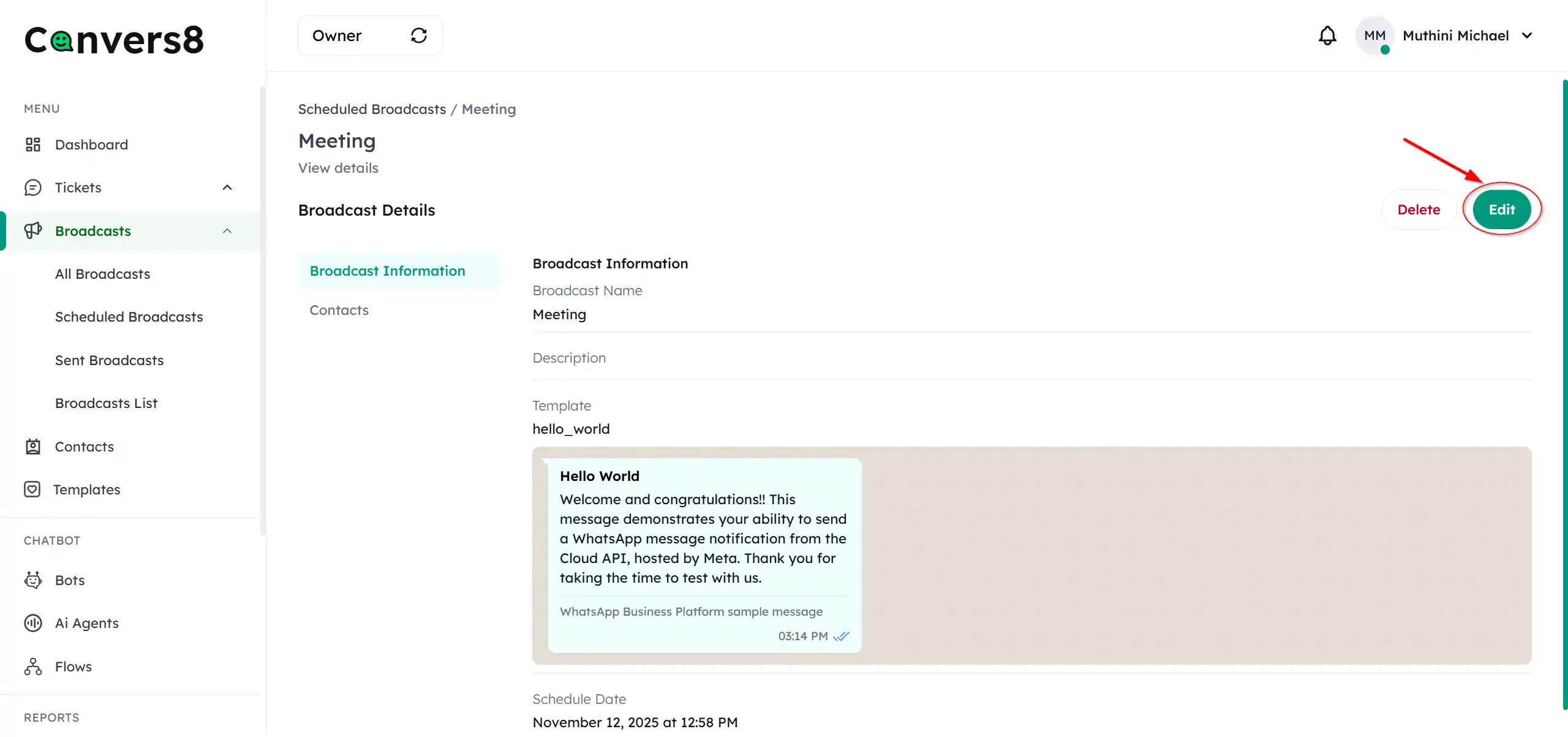
You can update the following fields:
- Broadcast Name or Description
- Template Message
- Scheduled Date and Time
- Target Contacts or Lists
Step 4: Preview and Save Changes
After editing, click Preview to confirm your updates. If everything looks correct, click Save Changes to update the broadcast.
Tips for Editing Broadcasts
- Always double-check the date and time after edits to ensure the schedule is correct.
- If you change the template, make sure it’s approved and active on your WABA account.
- Avoid editing too close to the scheduled send time to prevent conflicts.