
Deleting a Broadcast
Deleting a broadcast allows you to remove scheduled, cancelled or sent campaigns that are no longer needed. This helps keep your Broadcasts section organized and ensures only relevant communication remains in your workspace.
When You Can Delete a Broadcast
You can delete broadcasts that are:
- Scheduled — The message is set to go out at a future time.
- Sent — The broadcast has already been delivered and appears in your Sent tab.
- Canceled — The broadcast was stopped before being sent.
⚠️ Note: Once deleted, the broadcast and its analytics (delivery reports, engagement data, and message logs) are permanently removed.
How to Delete a Broadcast
Step 1: Navigate to Broadcasts
Go to the Broadcasts section.
Step 2: Locate the Broadcast
Select either the Scheduled or Sent tab on the Broadcasts sub-section.
Find the specific broadcast you wish to delete and click View to open its details.
Step 3: Delete the Broadcast
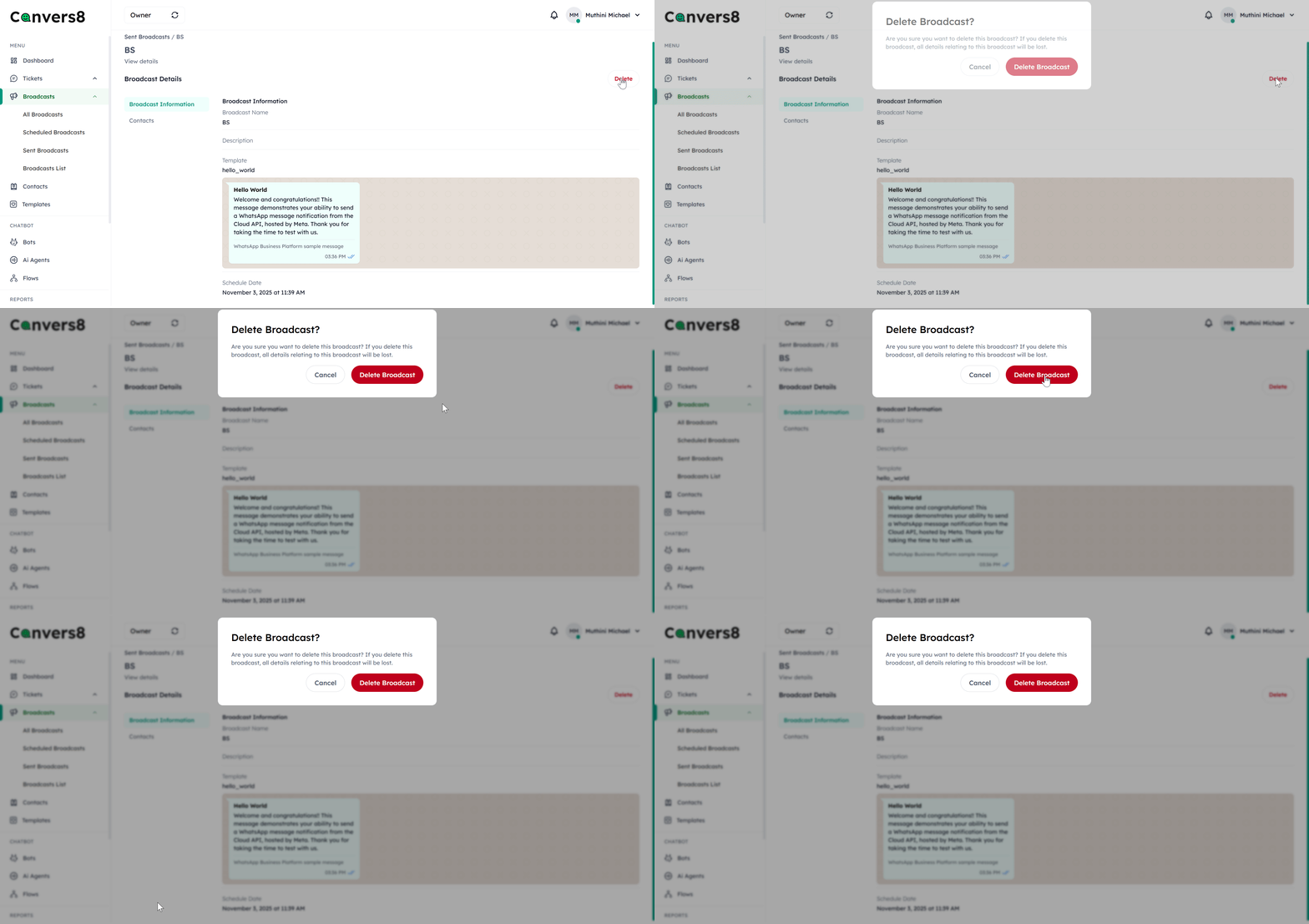
Click the Delete button in the top-right corner of the broadcast details page.
WARNING
Deleted broadcasts are permanently removed from history and analytics.
Step 4: Confirm Deletion
A confirmation pop-up will appear. Review the details carefully, then click Delete Broadcast to permanently remove it.
Tips for Deleting Broadcasts
- Double-check before deleting. Once removed, broadcast data cannot be recovered.
- Export analytics first if you wish to keep a record of performance before deletion.